Build a geolocation tracking app with JS and PubNub
Share live locations on a map with the PubNub JavaScript SDK: positions as messages, last known positions from history, Presence, and optional AI facts.

Set up your environment
In this tutorial you build a location tracker that runs in the browser with the PubNub JavaScript SDK. Everyone who opens the same session link shares their location, and sees everyone else's on one map, as they move. When you join, you also see where the others were last. Optionally, a PubNub Function asks OpenAI for a few facts about where you are.
You need:
A current browser: Chrome, Firefox, Safari or Edge.
A code editor, for example Visual Studio Code
A way to serve a folder on
localhost, for example Node.js (npx serve) or Python 3 (python3 -m http.server). Browsers only share your location with pages onhttps://orlocalhost.Optional, for the location facts: an OpenAI API account and API key.
The map uses Leaflet with OpenStreetMap tiles, so you don't need a map API key.
Get the code
Clone the repository:
git clone https://github.com/PubNubDevelopers/Geolocation-Demo.git
cd Geolocation-Demo
The app is index.html, styles.css and js/app.js. The optional Function is in functions/location-facts.js.
Tested with the PubNub JavaScript SDK 13.1.2 (October 2026).
Create keys
You need a free PubNub account and a keyset with Presence and Message Persistence on. For the optional location facts you also need Functions, which every keyset can use. Create it with your AI coding tool and the PubNub MCP Server, or by hand in the Admin Portal.
With the PubNub MCP Server
The PubNub MCP Server lets your AI tool create apps and keysets in your account. It runs at https://mcp.pubnub.com, and you sign in with your PubNub account, so there's nothing to install. If you're in an organization, its Account Owner or an Admin has to enable MCP connections first.
- Create a free account if you don't have one.
- Add the server to your tool:
- Claude Code: run
claude mcp add --scope user --transport http pubnub https://mcp.pubnub.com, startclaude, enter/mcp, select pubnub and sign in. - Cursor: add
{"mcpServers": {"PubNub": {"url": "https://mcp.pubnub.com"}}}to.cursor/mcp.json, then turn it on in Cursor Settings → Tools & MCP. - VS Code: add
{"servers": {"PubNub": {"type": "http", "url": "https://mcp.pubnub.com"}}}to.vscode/mcp.json.
- For Claude Desktop, Codex, Gemini CLI and OpenCode, see Set up the MCP server.
- Ask your tool: "Create a PubNub app with a testing keyset for a location tracking tutorial. Turn on Presence for all channels and Message Persistence, then show me the publish and subscribe keys."
- Copy the Publish key and the Subscribe key. You paste them into
js/app.jsin the build steps.
Before you build, open the keyset in the Admin Portal and check that Presence tracks All channels. Step 5 of the portal steps below explains why the active user count needs it.
In the Admin Portal
- Sign in to the Admin Portal, or create a free account.
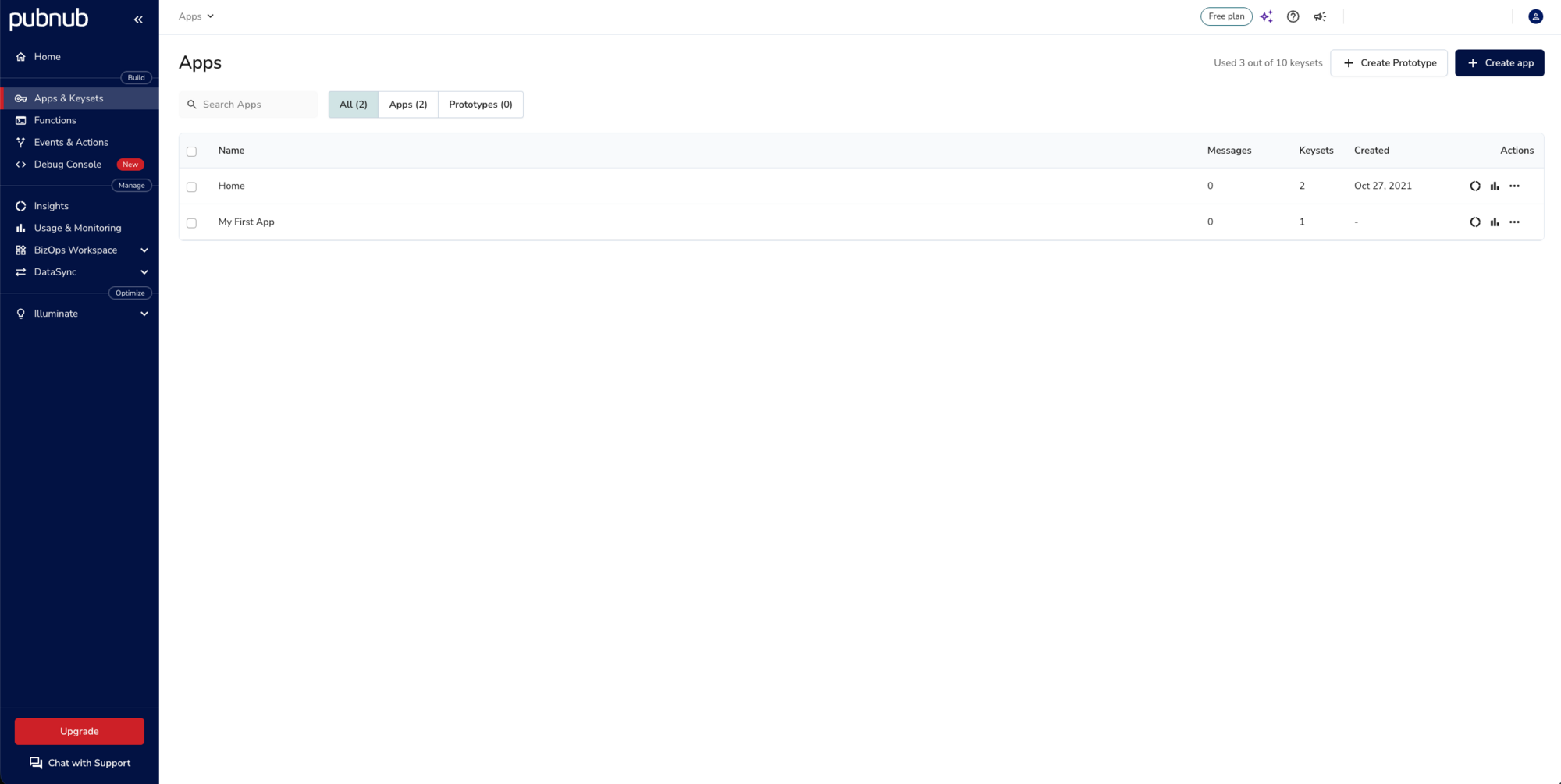
- Go to Apps & Keysets and click Create app. Give the app a name.
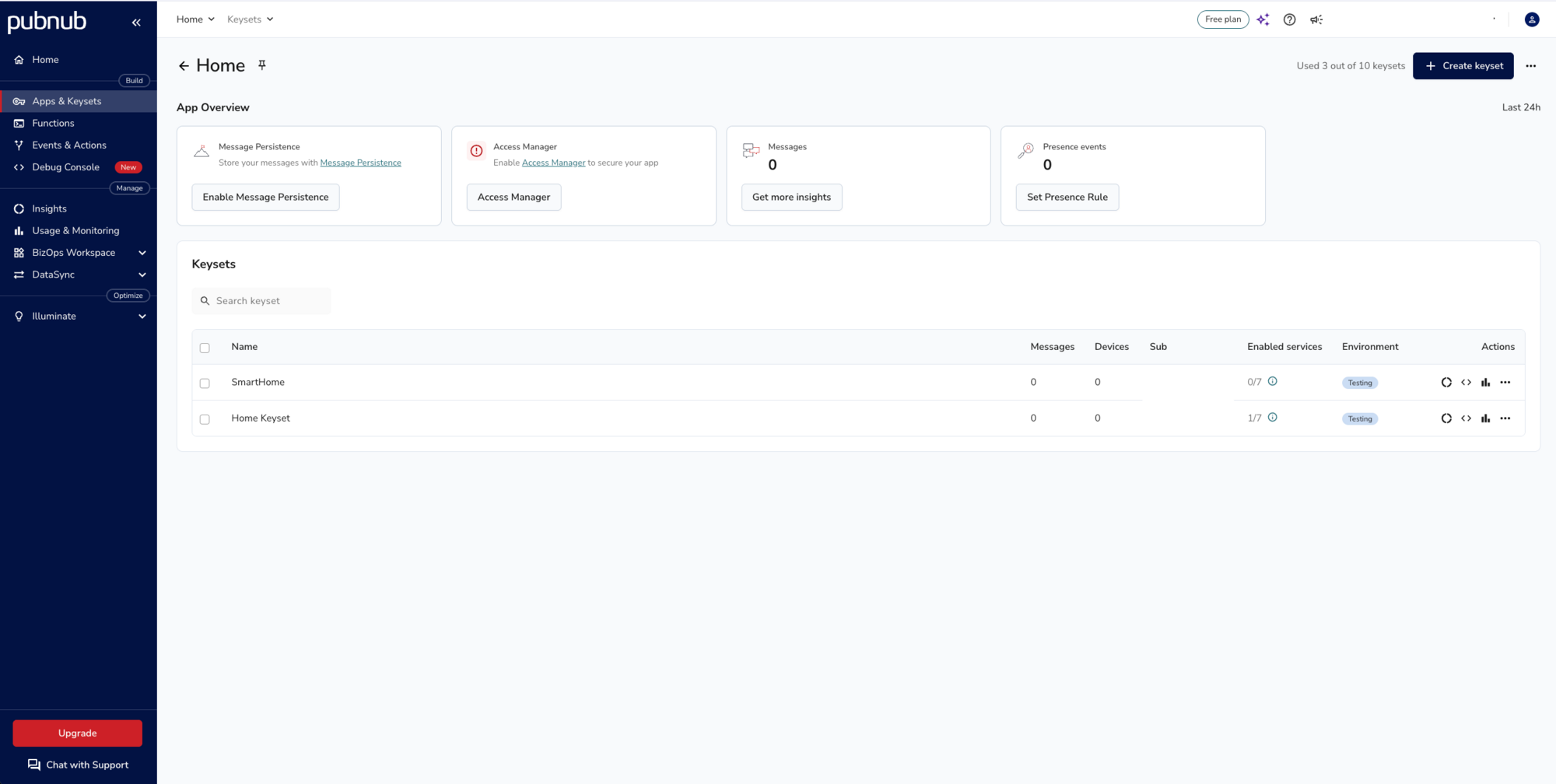
- Open the app and click Create keyset.
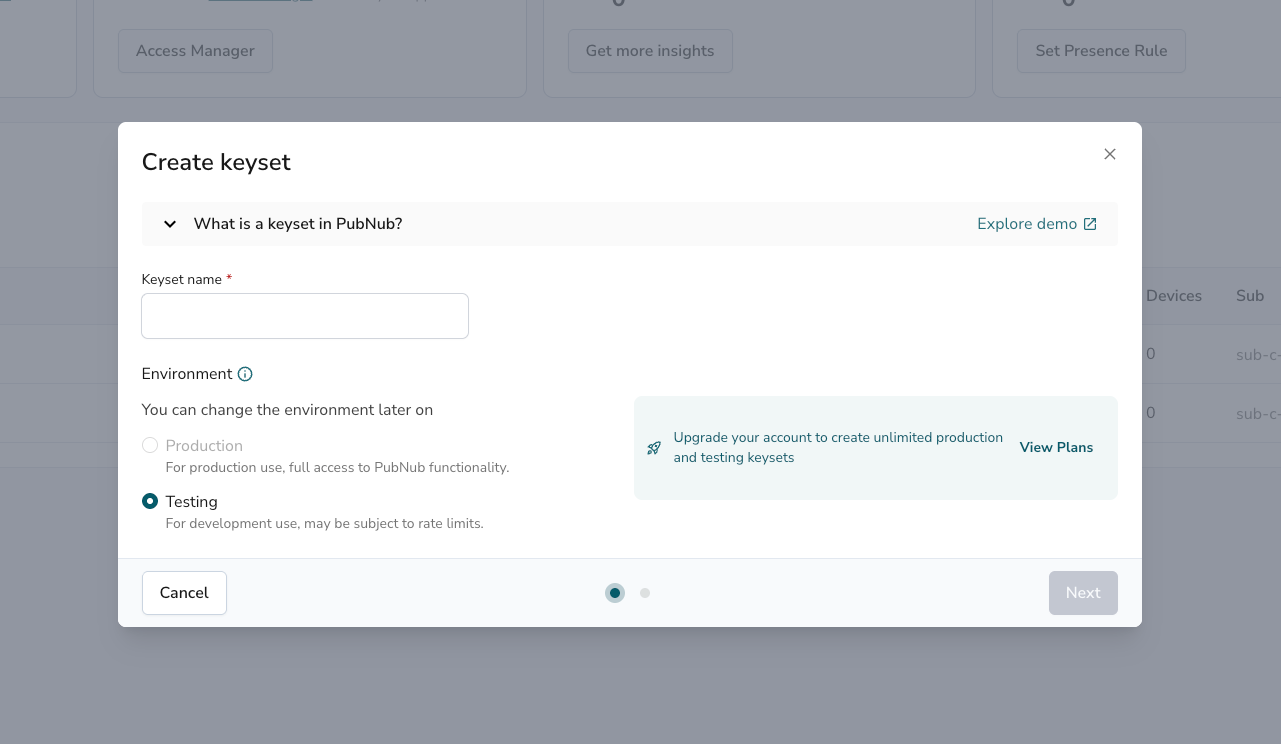
- Enter a keyset name, keep the environment on Testing and click Next.
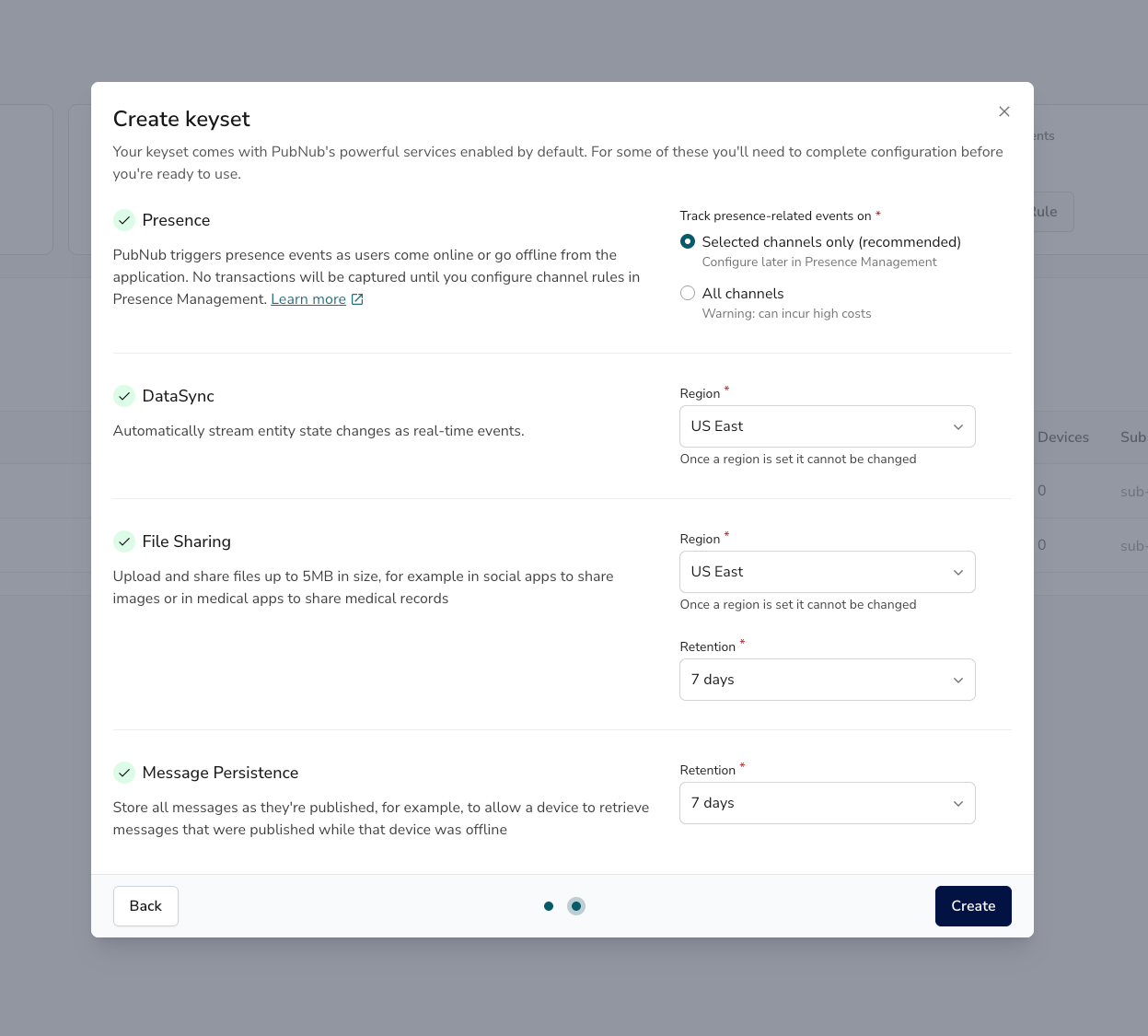
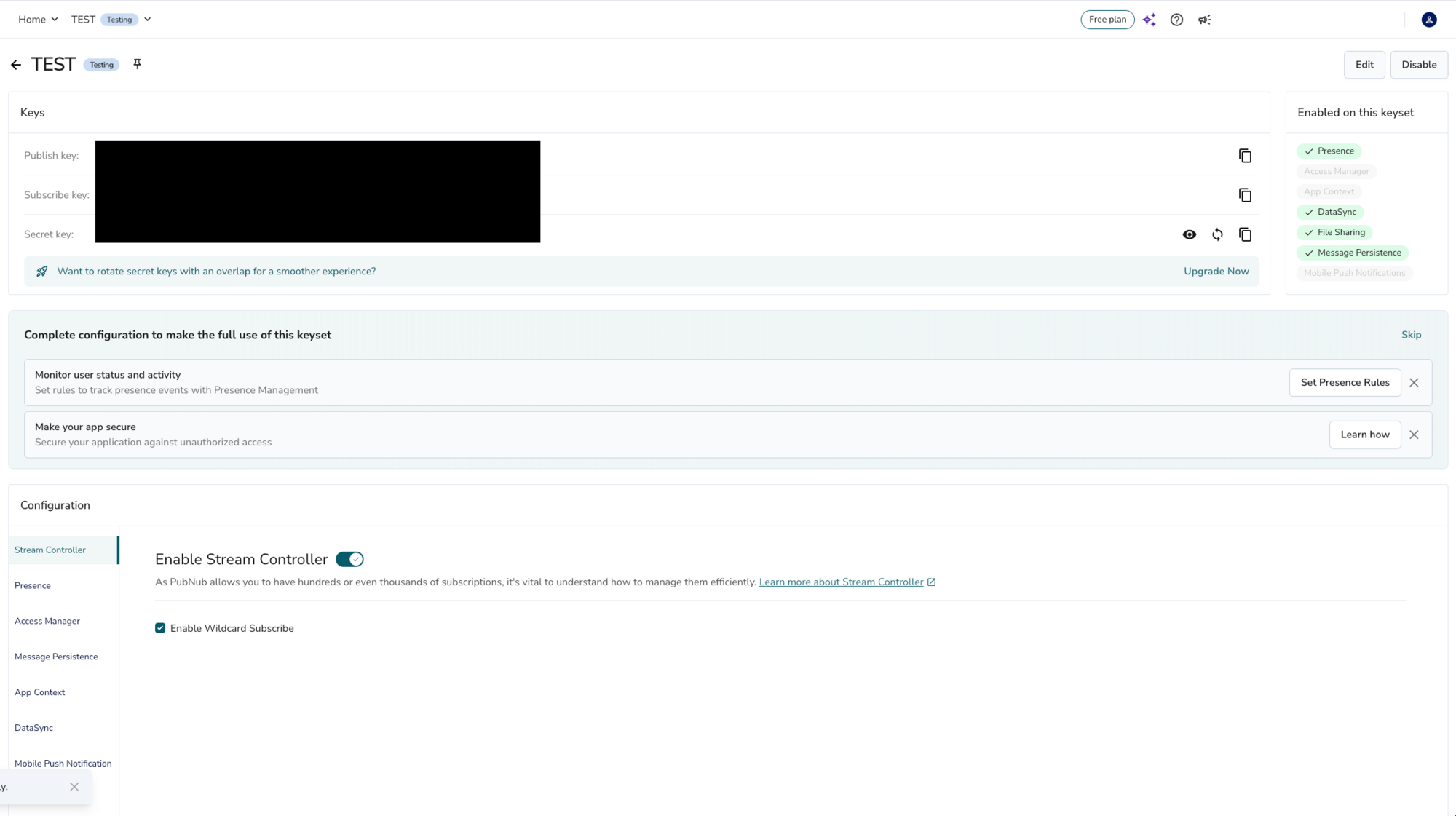
- The next screen lists the services that come with the keyset. Presence and Message Persistence are already on. Under Presence, choose All channels, then click Create.
- The default, Selected channels only, doesn't track presence until you add a rule in Presence Management. The positions would still arrive, but the active user count would stay at 0. All channels is fine for a test keyset with a few users; the portal warns it can incur high costs on a busy one. On a production keyset, keep Selected channels only, give the session channels a common prefix and add a Presence rule for it.
- Copy the Publish key and the Subscribe key from the Keys panel. You paste them into
js/app.jsin the build steps.
Build and run
The tracker uses one channel per session, named after the session ID in the invite link:
- Every position is a message on the session channel, so everyone in the session gets it at once.
- Presence on the same channel counts who's in the session.
- Message Persistence keeps those messages, so a new user can see where everyone was last.
The steps below walk through js/app.js.
Step 1. Add your PubNub keys
Open js/app.js and replace YOUR_PUBLISH_KEY and YOUR_SUBSCRIBE_KEY with your keys from step 2:
const pubnub = new PubNub({
  publishKey: 'YOUR_PUBLISH_KEY',
  subscribeKey: 'YOUR_SUBSCRIBE_KEY',
  userId: userId
})
The User ID is random and stays the same while the tab is open, together with your name and greeting:
// Keep the same User ID, name and greeting while the tab is open.
const userId = sessionStorage.getItem('userId') || makeid(15)
sessionStorage.setItem('userId', userId)
let username = sessionStorage.getItem('username')
if (!username) {
  username = cleanText(prompt('Please enter your name to join the session.'), 30) || 'ANON_' + makeid(4)
  sessionStorage.setItem('username', username)
}
let greeting = sessionStorage.getItem('greeting') || 'Not set.'
Step 2. Run the app
Serve the folder on localhost, for example:
npx serve .
Open the address it prints (http://localhost:3000 for npx serve), enter a name and allow location access. Your marker shows up on the map. Click Copy invite link and open the link in another browser or a private window: you see both markers, and 2 active user(s). Use your browser's developer tools to give the second window another location (in Chrome: More tools → Sensors).
The invite link points to localhost, so it only works on your computer. To try it on a phone, put the folder on an https:// address, for example with a static hosting service: browsers don't share the location with plain http:// pages on your network.
The map uses OpenStreetMap's tile servers, which are fine for a tutorial but aren't meant for heavy use (tile usage policy). For production, use a tile provider.
Step 3. Join a session
The session ID comes from the invite link (?channel=...). Without one, the app makes a new ID and puts it in the address bar, so the link you copy brings others into the same session:
// The session channel comes from the invite link (?channel=...), or a new one is made.
let sessionChannel = String(getParameterByName('channel') ?? '').replace(/[^A-Za-z0-9]/g, '').substring(0, 20) || makeid(5)
document.getElementById('channel-label').textContent = sessionChannel
window.history.replaceState(null, '', '?channel=' + sessionChannel)
The app subscribes to the session channel with presence events. Your own channel, facts.<User ID>, is for the optional location facts in step 8:
// Subscriptions: the session channel with presence events, and your own channel for the AI facts.
let sessionSubscription = null
const factsSubscription = pubnub.channel('facts.' + userId).subscription()
factsSubscription.onMessage = event => showFacts(event.message)
Step 4. Share your position
The browser reports your position whenever it changes. Unless you turned on Don't Update My Location, the app publishes it on the session channel with your name and greeting, at most every 2 seconds:
// Your location from the browser. Every update goes to the session channel.
if (navigator.geolocation) {
  navigator.geolocation.watchPosition(onPosition, error => {
    factsArea.value = 'Your location isn\'t available: ' + error.message + '. Allow location access for this page and reload it.'
  })
} else {
  alert('This browser can\'t share its location.')
}

function onPosition (position) {
  if (document.getElementById('locationshareswitch').checked) return // "Don't Update My Location"
  lastPosition = { lat: position.coords.latitude, lng: position.coords.longitude }
  publishPosition()
  askForFacts(lastPosition)
}

// Publish at most every 2 seconds. A newer position waits for the next slot, so the last one always goes out.
const PUBLISH_INTERVAL = 2000
let lastPublish = 0
let publishTimer = 0

function publishPosition () {
  if (!lastPosition) return
  clearTimeout(publishTimer)
  const wait = PUBLISH_INTERVAL - (Date.now() - lastPublish)
  if (wait > 0) {
    publishTimer = setTimeout(publishPosition, wait)
    return
  }
  lastPublish = Date.now()
  publishMessage(sessionChannel, { username, greeting, lat: lastPosition.lat, lng: lastPosition.lng })
}

async function publishMessage (channel, message) {
  try {
    await pubnub.publish({ channel, message })
  } catch (error) {
    console.log(error)
  }
}
When you change your name or greeting, the app publishes your last position again, so the others see the change at once.
Step 5. Show everyone on the map
Every position on the session channel moves that user's marker, yours included:
function subscribeToSession () {
  sessionSubscription = pubnub.channel(sessionChannel).subscription({ receivePresenceEvents: true })
  // A position from someone in the session (or from you): move their marker.
  sessionSubscription.onMessage = event => {
    const update = readPosition(event.message, event.publisher, event.timetoken)
    if (update) showUser(update)
  }
  // Someone joined or left: update the count. state-change events carry no occupancy.
  sessionSubscription.onPresence = event => {
    if (event.action !== 'state-change') setActiveUsers(event.occupancy)
  }
  sessionSubscription.subscribe()
}
Anyone with your keys can publish on the channel, so readPosition() only accepts real coordinates. The marker belongs to the message's publisher, the User ID PubNub reports, not to an ID inside the message:
// Anyone with your keys can publish on the channel, so only accept positions with the expected shape.
// The marker belongs to the publisher, not to an ID inside the message.
function readPosition (message, publisher, timetoken) {
  if (!message || typeof message !== 'object') return null
  const lat = Number(message.lat)
  const lng = Number(message.lng)
  if (!Number.isFinite(lat) || !Number.isFinite(lng) || Math.abs(lat) > 90 || Math.abs(lng) > 180) return null
  return {
    userId: publisher,
    username: (typeof message.username === 'string' && cleanText(message.username, 30)) || 'ANON',
    greeting: (typeof message.greeting === 'string' && cleanText(message.greeting, 100)) || 'Not set.',
    lat,
    lng,
    lastSeen: new Date(Number(timetoken) / 10000) // A timetoken counts 100-nanosecond intervals.
  }
}
showUser() moves the marker and updates its name and popup. The popup is built with textContent, so a name or greeting can't inject HTML into the page. With Plot New Paths on, it also draws the path each user takes.
Step 6. Count who's in the session
The presence handler in step 5 updates the count when someone joins or leaves. To show the right count as soon as you join, the app asks PubNub with hereNow once the connection is up:
pubnub.addListener({
  status: statusEvent => {
    if (statusEvent.category === 'PNConnectedCategory') updateActiveUsers()
  }
})// Ask PubNub how many users are in the session right now.
async function updateActiveUsers () {
try {
const result = await pubnub.hereNow({ channels: [sessionChannel] })
setActiveUsers(result.totalOccupancy)
} catch (error) {
console.log(error)
}
}
function setActiveUsers (count) {
if (Number.isFinite(count)) document.getElementById('active-label').textContent = count
}Browsers don't tell PubNub when a tab closes, so by default a closed tab stays in the count until the presence timeout (300 seconds). The app unsubscribes on pagehide, which usually sends a leave event right away:
// Leave the session when the tab closes, so the count drops for the others right away.
window.addEventListener('pagehide', () => {
  sessionSubscription.unsubscribe()
  factsSubscription.unsubscribe()
})
// Back button: the browser restored this page from its cache, so subscribe again.
window.addEventListener('pageshow', event => {
  if (event.persisted) {
    sessionSubscription.subscribe()
    factsSubscription.subscribe()
  }
})
Step 7. Show the last known positions
Someone who isn't sharing their location right now doesn't publish anything. To show where everyone was last, the app reads the last 100 messages of the session from Message Persistence when it starts, and keeps the latest position per user:
// Show everyone's last known position: the latest of the last 100 positions in the session.
async function loadLastPositions () {
  try {
    const result = await pubnub.fetchMessages({ channels: [sessionChannel], count: 100 })
    const latest = {}
    for (const item of result.channels[sessionChannel] || []) {
      const update = readPosition(item.message, item.uuid, item.timetoken)
      if (update) latest[update.userId] = update // Oldest first, so later positions win.
    }
    Object.values(latest).forEach(showUser)
  } catch (error) {
    console.log(error)
  }
}
By default, Message Persistence keeps messages for 7 days on a Testing keyset. Click Create new session to start again with an empty map.
Step 8. Optional: location facts with AI
The panel next to the map shows a few facts about where you are. The app doesn't call OpenAI itself, because that would put your OpenAI key in the browser. It sends your position to facts-request.<User ID> with fire(), after you've moved more than 5 miles. A fire goes only to Functions: it isn't delivered to subscribers or stored.
function askForFacts (position) {
  if (lastFactsPosition && distanceMiles(lastFactsPosition, position) <= FACTS_DISTANCE_MILES) return
  lastFactsPosition = position
  pubnub.fire({ channel: 'facts-request.' + userId, message: { lat: position.lat, lng: position.lng } })
    .catch(error => console.log(error))
  factsArea.value = 'Asking for facts about your location...'
  clearTimeout(factsTimer)
  factsTimer = setTimeout(() => {
    factsArea.value = 'No facts yet. To see facts about your location here, set up the optional location facts Function (see the tutorial). ' +
      'If you have, check its Debug tab in the Admin Portal for errors.'
  }, 20000)
}
A PubNub Function runs on PubNub for each of these requests. It checks the coordinates, asks the OpenAI Responses API about the place with your key, and publishes the answer on facts.<User ID>, the channel the app subscribed to in step 3:
try {
  const message = request.message || {}
  const lat = Number(message.lat)
  const lng = Number(message.lng)
  // Anyone with the keys can publish here, so only send real coordinates to OpenAI.
  if (!Number.isFinite(lat) || !Number.isFinite(lng) || Math.abs(lat) > 90 || Math.abs(lng) > 180) {
    return request.ok()
  }

  const apiKey = await vault.get('OPENAI_API_KEY')
  const response = await xhr.fetch('https://api.openai.com/v1/responses', {
    method: 'POST',
    headers: {
      'Content-Type': 'application/json',
      Authorization: `Bearer ${apiKey}`
    },
    timeout: 9000, // The default is 5 s; a Function may run for up to 10 s.
    body: JSON.stringify({
      model: MODEL,
      instructions: 'You give short, interesting facts about places. Answer in plain text, at most 5 sentences. ' +
        'If you can\'t tell where the coordinates are, say so in one sentence.',
      input: `Tell me about the place at latitude ${lat}, longitude ${lng}: where it is and a few facts about it.`,
      max_output_tokens: MAX_OUTPUT_TOKENS,
      reasoning: { effort: 'none' }, // Reasoning tokens count against max_output_tokens; facts don't need them.
      store: false // Don't keep the request and the answer on OpenAI.
    })
})// The text is in the output_text parts of the message items; don't assume it's the first item.
const output = JSON.parse(response.body).output || []
const text = output
.filter(item => item.type === 'message')
.flatMap(item => item.content || [])
.filter(part => part.type === 'output_text')
.map(part => part.text)
.join('')
.trim()
if (!text) return request.ok()
const userId = request.channels[0].substring('facts-request.'.length)
await pubnub.publish({ channel: `facts.${userId}`, message: { text } })
return request.ok()The model is the MODEL constant at the top of functions/location-facts.js. See OpenAI's models to pick another one.
To deploy the Function on your keyset:
In the Admin Portal, go to Functions and click Create package. Select Configure your own, enter a name (for example Location facts) and click Next.
Enter a Function name, choose the event type After Publish or Fire, set the channel pattern to
facts-request.*and click Create package.Click Edit code, replace the sample with the contents of
functions/location-facts.jsand click Save. Give the revision a name and save it.In the revision editor, click Assign secrets and add a secret named
OPENAI_API_KEYwith your OpenAI API key. Secrets belong to the keyset and are only readable inside your Functions.Click Deploy on the revision, click Add keyset, choose your keyset, click Create and then Deploy.
Reload the app. A few seconds after your first position, the facts appear in the panel. Without the Function, the panel says how to set it up after 20 seconds. If nothing shows up although the Function is deployed, open its Debug tab: it shows the Function's log, including OpenAI errors such as a wrong key.
Step 9. Try it out
Open the app in two browsers with the same invite link. Both markers show up, and the count says 2.
Click a marker to see the user's name, when they were last seen, their coordinates and their greeting.
Change your name or greeting and click Update: the other browser shows the change straight away.
Turn on Plot New Paths and change your location in the developer tools: your path is drawn on the map.
Close one browser: the count drops to 1, and that user's marker stays at their last position.
The count stays at 0? Presence isn't tracking the session channel. In the Admin Portal, set Presence to All channels on your keyset (step 2).
No marker for you? Check that the page is on localhost or https://, that you allowed location access, the keys in js/app.js, and the browser console for errors.

Congratulations - what's next?
You have a live location tracker on the PubNub JavaScript SDK: positions as messages on a session channel, the last known positions from Message Persistence, a count of active users from Presence and, optionally, a PubNub Function that adds AI-generated facts about each place.
To take it further:
Send positions as signals. A position goes out of date quickly. Signals are cheaper than messages, but limited to 64 bytes and not stored, so keep publishing a message now and then for the last known position.
Add geofences. A Function can check each position against an area and alert someone when a user enters or leaves it.
Play back a route. The positions are already in Message Persistence: fetch a user's messages for a time range and draw them as a path.
Go further with the JavaScript SDK
JavaScript SDK documentation Presence Message Persistence FunctionsBefore you go to production
Locations are personal data. This tutorial lets anyone with your keys and a session ID read the positions in that session. Use Access Manager to give each user a token for the sessions they belong to, give each user a stable User ID instead of a random one, and tell users how long you keep their positions. The location facts Function calls OpenAI with your key for every request on facts-request.*, so limit who can send them, for example with Access Manager or a rate limit in the Function.
Ready to get beyond proof of concept?
Schedule a 15-minute chat with one of our experts to get your project moving.
Talk to an ExpertTake it to production on your own keys
Create a free PubNub account to get permanent keys for this app.