Build a live leaderboard and chat in Unity with PubNub
Add a real-time leaderboard and lobby chat to a Unity racing game with the PubNub Unity SDK 10: publish, subscribe, history and a Function with KV Store.

Set up your environment
In this tutorial you run PubNub Prix, a kart racing game made in Unity, and look at how it uses the PubNub Unity SDK. After a race, the win screen shows a top 10 leaderboard that updates for every player as soon as someone submits a faster time, and a lobby chat where players talk to each other. A PubNub Function sorts the times and keeps them in KV Store, so the game needs no server of its own.
The game is based on Unity's Karting Microgame. Unity no longer offers that learning project, but everything the game needs is in the repository, so you don't have to download it.
You need:
- Unity Hub and Unity Editor 2021.3. The project is set to 2021.3.9f1, which Unity Hub offers to install when you open it. Other 2021.3 versions are in the Unity download archive.
- Git. The Unity Package Manager also uses it to install the PubNub SDK.
- A code editor with C# support, for example Visual Studio or Visual Studio Code.
- A free PubNub account. You create keys and a Function in it in the next steps.
Get the code
Clone the repository and switch to the leaderboard-chat branch, which has the PubNub code. The default branch, base, is the game without the leaderboard and chat.
git clone https://github.com/PubNubDevelopers/unity-karting-game.git
cd unity-karting-game
git checkout leaderboard-chat
In Unity Hub, click Add → Add project from disk and select the unity-karting-game folder, then open the project. The first time it opens, Unity downloads the packages listed in Packages/manifest.json, including the PubNub SDK, so it takes a few minutes.
The PubNub Unity SDK
The game gets the SDK from the Unity Package Manager. This line in Packages/manifest.json installs version 10.1.0 from GitHub:
"com.pubnub.sdk": "https://github.com/pubnub/unity.git?path=/PubNubUnity/Assets/PubNub#v10.1.0",To add the SDK to another project, open Window → Package Manager, click + → Add package from git URL and paste https://github.com/pubnub/unity.git?path=/PubNubUnity/Assets/PubNub. Then follow the rest of the Unity SDK setup. Scripts that use PubNub import the PubnubApi and PubnubApi.Unity namespaces. If your scripts are in an assembly definition, add the SDK's PubNubAPI assembly to its references, as the game's Assets/Karting/Scripts/KartGame.asmdef does.
Written for the PubNub Unity SDK 10.1.0 at commit ccbd131 of the leaderboard-chat branch (October 2026). The project is set to Unity Editor 2021.3.9f1. The PubNub calls were tested outside Unity, but this version of the game hasn't been run in the Unity Editor yet.
Create keys
You need a free PubNub account and a keyset with Message Persistence on, which it is on a new keyset. The lobby chat uses it to show the last messages when a player arrives. Leave Access Manager off, as it is on a new keyset: the build steps explain why. In the build steps you also deploy a Function to this keyset for the leaderboard.
With the PubNub MCP Server
The PubNub MCP Server lets your AI tool create apps and keysets in your account. It runs at https://mcp.pubnub.com, and you sign in with your PubNub account, so there's nothing to install. If you're in an organization, its Account Owner or an Admin has to enable MCP connections first.
Create a free account if you don't have one, then add the server to your tool:
- Claude Code: run
claude mcp add --scope user --transport http pubnub https://mcp.pubnub.com, startclaude, enter/mcp, select pubnub and sign in. - Cursor: add
{"mcpServers": {"PubNub": {"url": "https://mcp.pubnub.com"}}}to.cursor/mcp.json, turn it on in Cursor Settings → Tools & MCP and sign in when prompted. - VS Code: add
{"servers": {"PubNub": {"type": "http", "url": "https://mcp.pubnub.com"}}}to.vscode/mcp.jsonand sign in when prompted. - Claude Desktop, Codex, Gemini CLI and OpenCode: see Set up the MCP server.
Then ask your tool: "Create a PubNub app with a testing keyset for a Unity game tutorial. Keep Message Persistence on, leave Access Manager off, then show me the publish and subscribe keys." Copy the Publish key and the Subscribe key it shows. You paste them into GameConstants.cs in the build steps.
In the Admin Portal
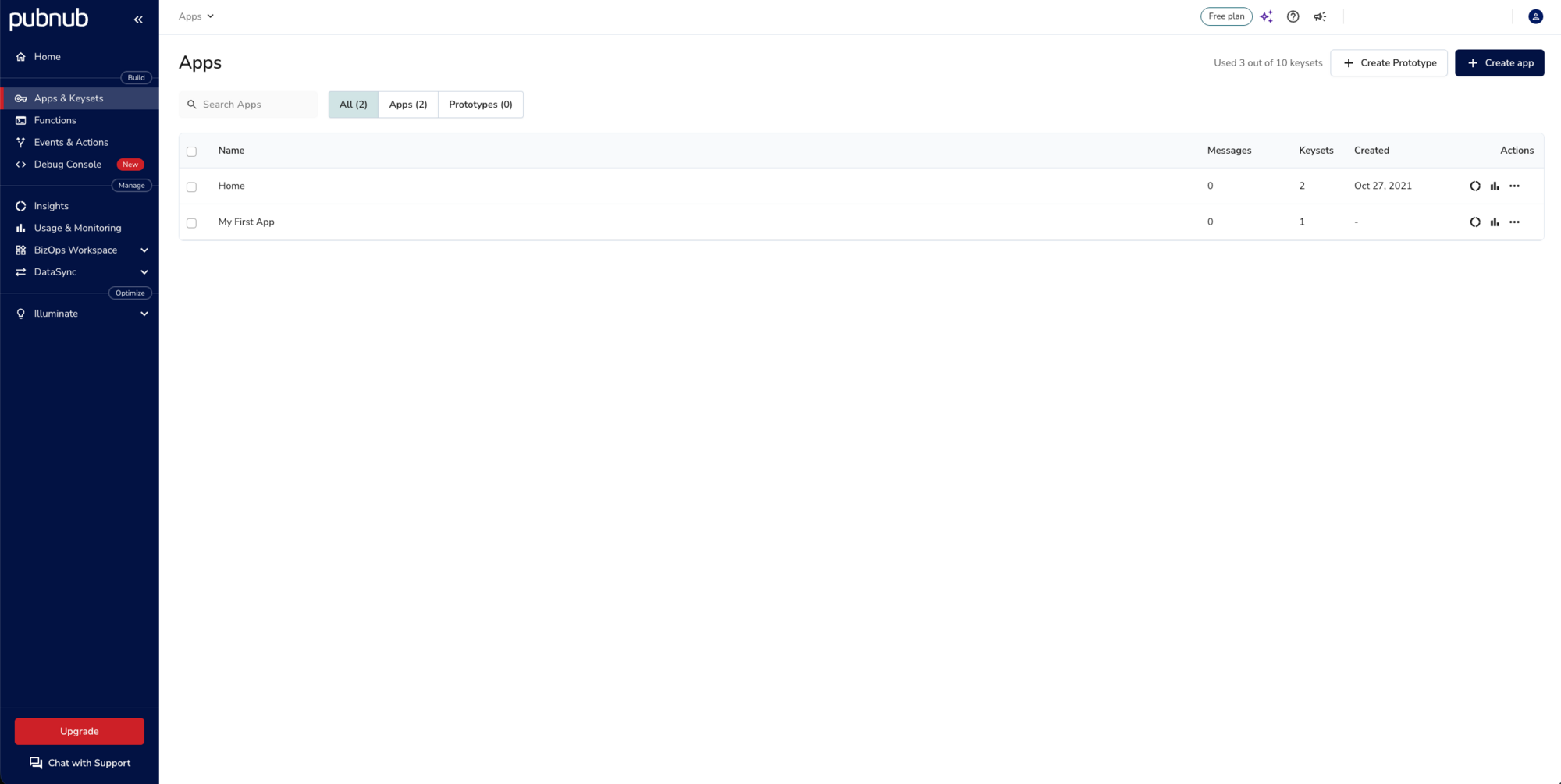
Sign in to the Admin Portal, or create a free account. Go to Apps & Keysets and click Create app. Give the app a name.
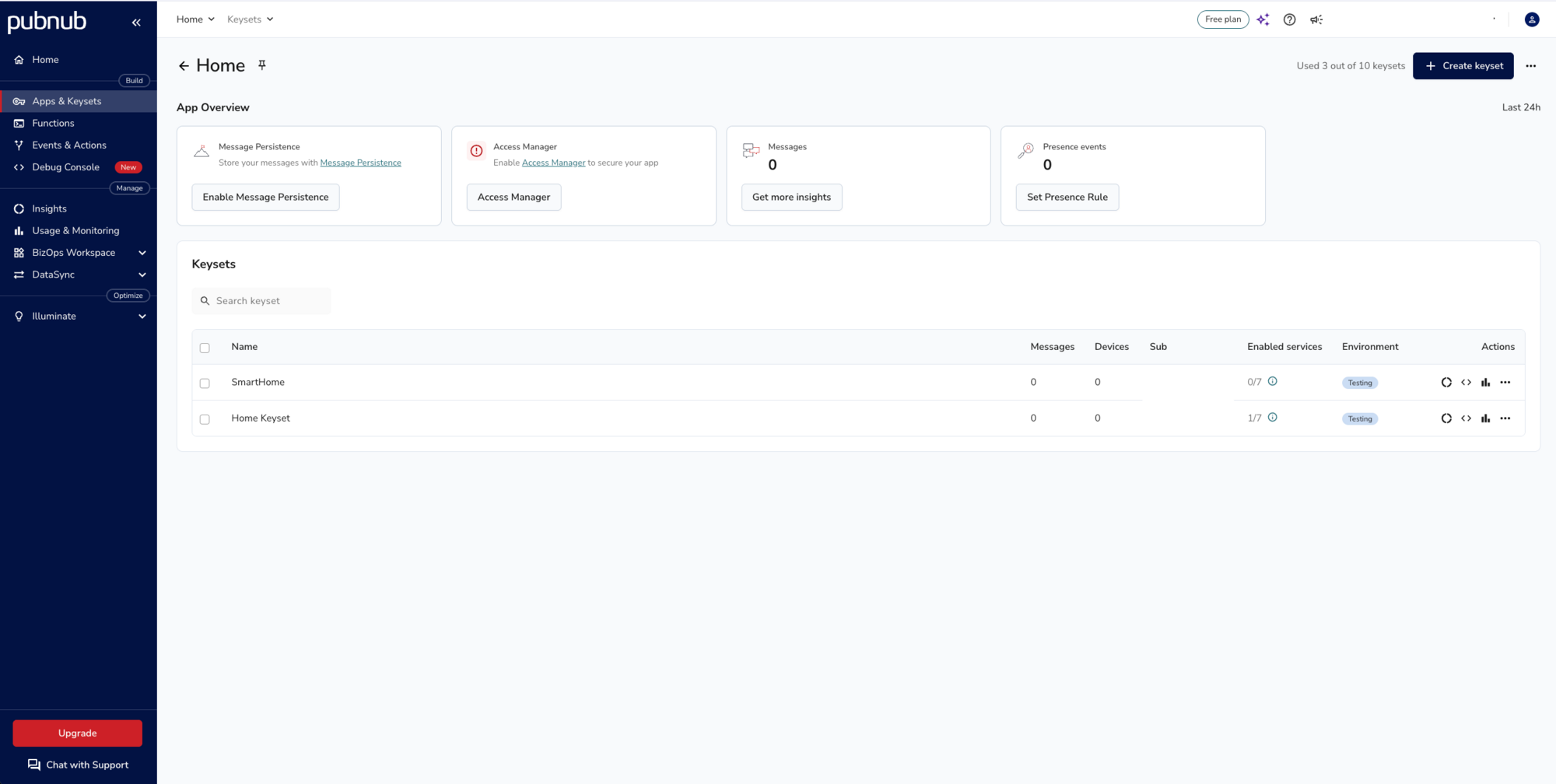
Open the app and click Create keyset.
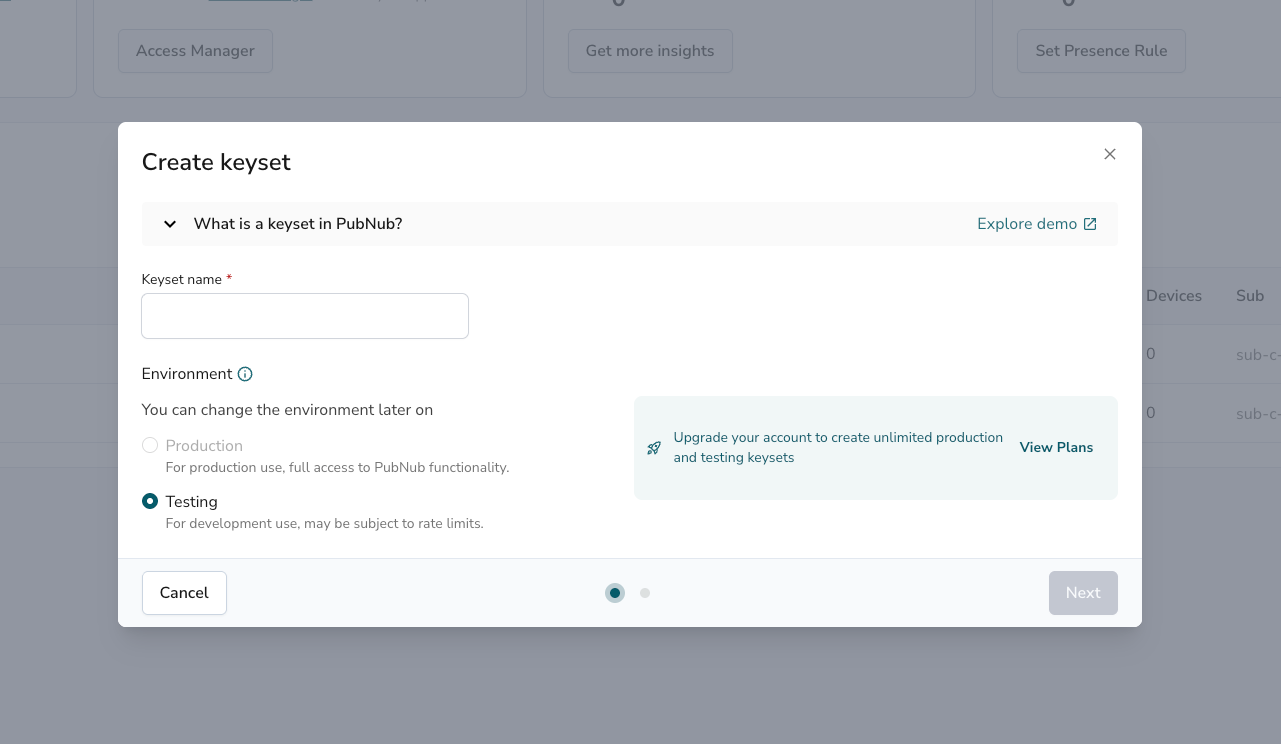
Enter a keyset name, keep the environment on Testing and click Next.
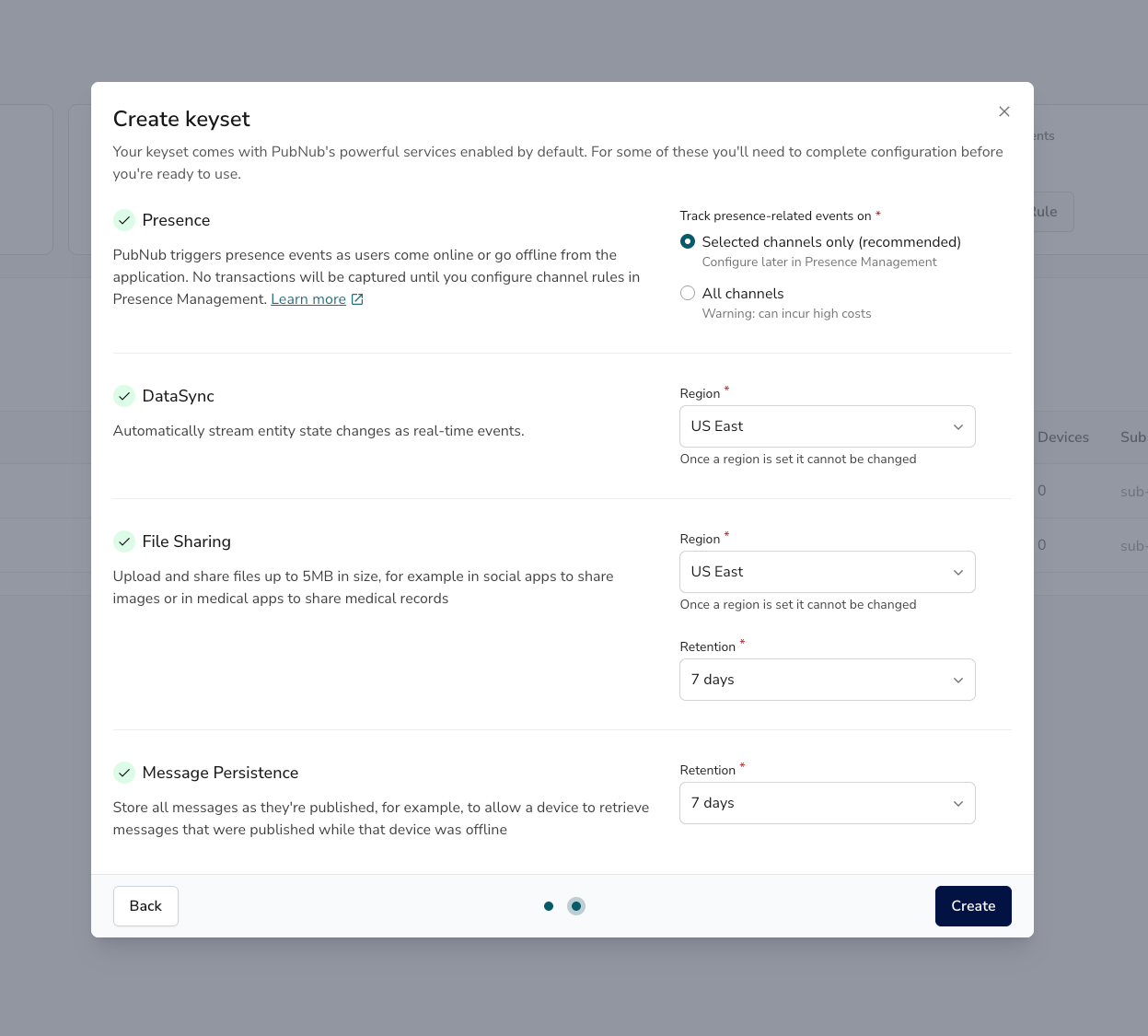
The next screen lists the services that come with the keyset. Message Persistence is already on, and the game needs nothing else here, so keep the defaults and click Create.
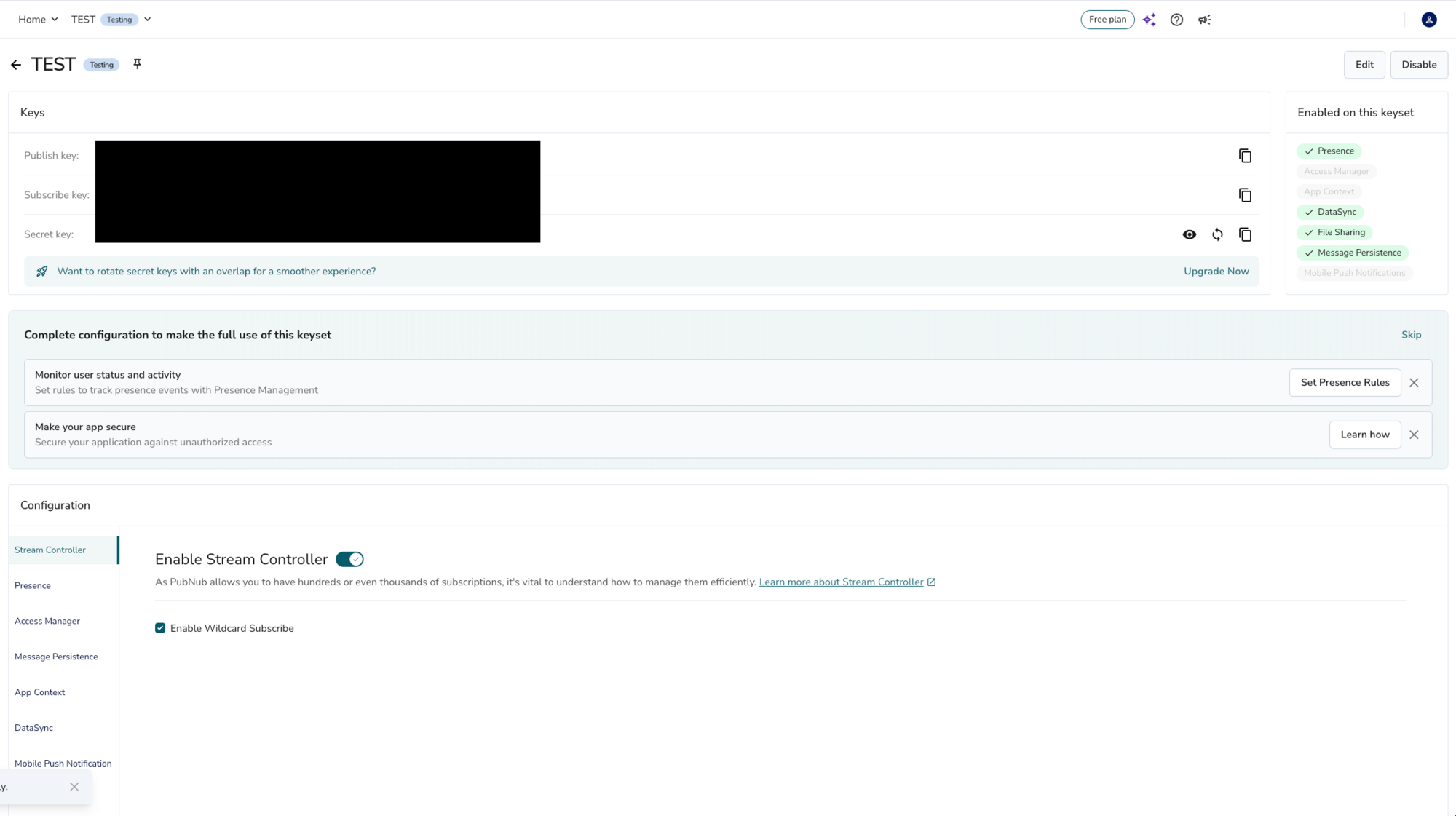
Finally, copy the Publish key and the Subscribe key from the Keys panel. You paste them into GameConstants.cs in the build steps.
Build and run
The game uses three PubNub channels:
chatchannelcarries the lobby chat. Each player publishes chat messages there, subscribes to it, and fetches the last 10 messages from history on arrival.submit_scoreis where the game sends a player's time, and a request to see the leaderboard. Nobody subscribes to it: a PubNub Function handles every message on it.leaderboard_scoresis where the Function publishes the sorted top 10. The win screen subscribes to it, so every player sees a new time at once.
The game has four scenes in Assets/Karting/Scenes: IntroMenu.unity (the main menu), MainScene.unity (the race), WinScene.unity (leaderboard and lobby chat) and LoseScene.unity, which has no PubNub code. The PubNub code is in Assets/Karting/Scripts.
The same code runs the hosted demo on pubnub.com, so a few lines only matter there. The steps below point them out.
Step 1. Add your PubNub keys
Open Assets/Karting/Scripts/GameConstants.cs and replace the two placeholders with your publish and subscribe keys from Create keys:
public const string PUBNUB_PUBLISH_KEY                  = "PUBLISH_KEY_HERE";
public const string PUBNUB_SUBSCRIBE_KEY                = "SUBSCRIBE_KEY_HERE";
The next two constants in the file are for the lobby chat. AVATAR_API_KEY is optional: the chat gets each player's picture from Multiavatar, which works without a key up to a request limit. PROFANITY_FILE_LOCATION is the address of the word list the game filters out of names and chat messages. It points to Data/profanity.txt on the leaderboard-chat branch on GitHub, because a WebGL build in the browser can't read files from the project.
Don't commit your keys if you push your copy of the repository anywhere.
Step 2. Create the PubNub client
Assets/Karting/Scripts/Utilities/PubNubConnection.cs is a static class that holds the keys, the User ID and a client for every scene to use:
public static class PubNubConnection
{
    //Persist the PubNub object across scenes
    private static string _userID;
    public static Pubnub pubnub;

    public static string PublishKey
    {
        get { return GameConstants.PUBNUB_PUBLISH_KEY; }
    }

    public static string SubscribeKey
    {
        get { return GameConstants.PUBNUB_SUBSCRIBE_KEY; }
    }

    public static string UserID
    {
        get { return _userID; }
        set { _userID = value; }
    }
}
When the race starts, InitializePubNub() in Assets/Karting/Scripts/GameFlowManager.cs creates the client:
void InitializePubNub()
{
    // Use this for initialization
    if (pubnub == null)
    {
        PubNubConnection.UserID = SystemInfo.deviceUniqueIdentifier;
        PNConfiguration pnConfiguration = new PNConfiguration(new UserId(PubNubConnection.UserID));
        pnConfiguration.PublishKey = PubNubConnection.PublishKey;
        pnConfiguration.SubscribeKey = PubNubConnection.SubscribeKey;
        pnConfiguration.LogLevel = PubnubLogLevel.Debug;
        pnConfiguration.EnableHttp2 = false; //HTTP/2 transport requires Unity 6.5+.
        PubNubConnection.pubnub = PubnubUnityUtils.NewUnityPubnub(pnConfiguration, webGLBuildMode: Application.platform == RuntimePlatform.WebGLPlayer, unityLogging: true);
        pubnub = PubNubConnection.pubnub;

        StartCoroutine(new PubNubAccessManager().RequestToken(PubNubConnection.UserID, (token) =>
        {
            if (token != null)
            {
                pubnub.SetAuthToken(token);
            }
        }));
    }
}
What the configuration does:
- The User ID is
SystemInfo.deviceUniqueIdentifier, Unity's ID for the device. PubnubUnityUtils.NewUnityPubnub()creates a client that runs its callbacks on Unity's main thread, so they can update the UI.webGLBuildModeis only true in a WebGL build in the browser, where the SDK has to send its requests withUnityWebRequest.EnableHttp2is off because the SDK's HTTP/2 transport needs Unity 6.5 or newer.LogLevelandunityLoggingwrite the SDK's logs to the Unity console.
Next, the function asks a token server for an Access Manager token and gives it to the client with SetAuthToken(). The token is for the hosted demo. Its keyset has Access Manager on, and PubNub's demo token server, in Assets/Karting/Scripts/Utilities/PubNubAccessManager.cs, grants each player access to the game's channels. The game sends it the device's User ID:
public IEnumerator RequestToken(string UserId, Action<string> callback)
{
    string TOKEN_SERVER = "https://devrel-demos-access-manager.netlify.app/.netlify/functions/api/unitykartracer";
Your keyset has Access Manager off, so PubNub ignores the token and the game works with or without it. If you turn Access Manager on, replace RequestToken() with a call to your own server (see Before you go to production at the end of this tutorial).
The win screen's scripts also create a client each, with the same settings. You see them in step 5.
Step 3. The main menu
Open Assets/Karting/Scenes/IntroMenu.unity. The player enters a name of up to six characters and clicks PLAY.
ToggleStartButton() in Assets/Karting/Scripts/UI/UsernameInput.cs turns the button on once the name is valid, filters it and keeps it for the other scenes:
    public void ToggleStartButton()
    {
        //Cap username at Length of 6.
        if(string.IsNullOrWhiteSpace(usernameInput.text) || usernameInput.text.Length > 6 )
        {
            startButton.interactable = false;
        }

        else
        {
            startButton.interactable = true;

            //Check for potential profanity. Replace profanity with "*".
            usernameInput.text = ProfanityFilter.ReplaceProfanity(usernameInput.text);
            Player.Username = usernameInput.text;
#if UNITY_WEBGL
            CompleteAction("Enter your username");
#endif
        }
    }
CompleteAction() only exists in WebGL builds. It tells the demo page on pubnub.com that the player finished a step of the demo, and doesn't affect the game.
ProfanityFilter.ReplaceProfanity() in Assets/Karting/Scripts/Utilities/ProfanityFilter.cs replaces any word from the list with asterisks. The list is downloaded from PROFANITY_FILE_LOCATION when the menu opens. The name and, later, the race time are kept in the static class Assets/Karting/Scripts/Player.cs:
public static class Player
{
    public static double Score { get; set; }
    public static string Username { get; set; }
}
Step 4. The race
Assets/Karting/Scenes/MainScene.unity is the race: pass the three checkpoints and cross the finish line as fast as you can.
When the player wins, EndGame() in GameFlowManager.cs stores the race time in seconds, rounded to two decimals:
Player.Score = Math.Round(m_TimeManager.TotalTime - m_TimeManager.TimeRemaining,2);In the original Karting Microgame, the checkpoints add time to the clock. That would make the times unfair on a leaderboard, so OnCollect() in Assets/Karting/Scripts/GameModes/PickupObject.cs no longer does it:
//TimeManager.OnAdjustTime(TimeGained); //Ignoring due to increasing time when collecting rings.Step 5. The win screen
Assets/Karting/Scenes/WinScene.unity shows the leaderboard on the left, the player's time with a Submit button in the middle and the lobby chat on the right.
The leaderboard
Awake() in Assets/Karting/Scripts/UI/Leaderboard.cs creates a client and requests the demo token, as in step 2:
PubNubConnection.UserID = SystemInfo.deviceUniqueIdentifier;
PNConfiguration pnConfiguration = new PNConfiguration(new UserId(PubNubConnection.UserID));
pnConfiguration.PublishKey = PubNubConnection.PublishKey;
pnConfiguration.SubscribeKey = PubNubConnection.SubscribeKey;
pnConfiguration.LogLevel = PubnubLogLevel.Debug;
pnConfiguration.EnableHttp2 = false; //HTTP/2 transport requires Unity 6.5+.
PubNubConnection.pubnub = PubnubUnityUtils.NewUnityPubnub(pnConfiguration, webGLBuildMode: Application.platform == RuntimePlatform.WebGLPlayer, unityLogging: true);
pubnub = PubNubConnection.pubnub;

StartCoroutine(new PubNubAccessManager().RequestToken(PubNubConnection.UserID, (token) =>
{
    if (token != null)
    {
        pubnub.SetAuthToken(token);
    }
    AccessManagerComplete();
}));
Then AccessManagerComplete() asks for the current leaderboard. It sends a refresh request to submit_score with Fire, which delivers a message only to Functions: subscribers don't get it and it isn't stored. The Function answers by publishing the leaderboard (step 6).
MyClass fireRefreshObject = new MyClass();
fireRefreshObject.refresh = "new user refresh";
string firerefreshobject = JsonUtility.ToJson(fireRefreshObject);

// This will trigger the leaderboard to refresh so it will display for a new user.
pubnub.Fire()
    .Channel("submit_score")
    .Message(firerefreshobject)
    .Execute((result, status) => {
        if (status.Error)
        {
            Debug.Log(status.Error);
            Debug.Log(status.ErrorData.Information);
        }
        else
        {
            Debug.Log(string.Format("Fire Timetoken: {0}", result.Timetoken));
        }
    });
A listener receives the leaderboard. The Function publishes it as an object with two arrays, username and score, sorted from the fastest time. The SDK delivers an object as a Newtonsoft JObject, so the listener reads the arrays from it and fills the ten rows:
listener.onMessage += (pn, messageResult) => {
    {
        //Creating arrays from the JSON object containing the payload in order to parse data easier.
        JObject msg = messageResult.Message as JObject;
        if (msg == null)
        {
            return;
        }
        string[] strArr = msg["username"].Select(item => (string)item).ToArray();
        string[] strScores = msg["score"].Select(item => (string)item).ToArray();

        //float templateHeight = 20f;
        for (int i = 0; i < strArr.Length; i++)
        {
            int rank = i + 1;

            //Obtain the LeaderBoardEntry Row for that rank.
            string entryText = "LeaderboardEntry" + rank;
            leaderboardEntry = leaderboardContainer.Find(entryText);

            //Rank
            leaderboardEntry.Find("EntryRankText").GetComponent<TMPro.TextMeshProUGUI>().text = rank.ToString();

            //Name
            leaderboardEntry.Find("EntryUsernameText").GetComponent<TMPro.TextMeshProUGUI>().text = strArr[i];

            //Time (in seconds)
            leaderboardEntry.Find("EntryTimeText").GetComponent<TMPro.TextMeshProUGUI>().text = strScores[i] + "s";
        }
    }
};
Then it adds the listener and subscribes to leaderboard_scores:
pubnub.AddListener(listener);

//Subscribes to the specified channel on the PubNub network to receive information.
pubnub.Subscribe<object>()
    .Channels(new string[] {
        "leaderboard_scores"
    })
    .WithPresence()
    .Execute();
WithPresence() also delivers presence events for the channel, which the game only writes to the console, so you can leave it out. This call is the client-level subscribe. The SDK docs recommend subscription objects instead: pubnub.Channel("leaderboard_scores").Subscription(), with the listener on the subscription and Subscribe<object>() to start it.
A PubNub client outlives the scene that created it. So when the player leaves the win screen, OnDestroy() removes the listener and unsubscribes. Otherwise the old listener would keep writing to a screen that no longer exists:
private void OnDestroy()
{
    if (pubnub != null)
    {
        pubnub.RemoveListener(listener);
        pubnub.UnsubscribeAll<object>();
    }
}
When the player clicks Submit, SubmitTime() publishes the name and the time to submit_score as JSON, once per race:
    public void SubmitTime()
    {
        MyClass mc = new MyClass();
        mc.username = Player.Username;
        mc.score = Player.Score.ToString();
        string json = JsonUtility.ToJson(mc);

        pubnub.Publish()
            .Channel("submit_score")
            .Message(json)
            .Execute((result, status) => {
                if (!status.Error)
                {
                    Debug.Log(string.Format("Publish Timetoken: {0}", result.Timetoken));
                }
                else
                {
                    Debug.Log(status.Error);
                    Debug.Log(status.ErrorData.Information);
                }
            });
        submitTime.interactable = false; // Only allow submit time once.
#if UNITY_WEBGL
        CompleteAction("Submit your time");
#endif
    }
The lobby chat
Assets/Karting/Scripts/UI/Chat.cs creates its own client in Awake() the same way. In AccessManagerComplete() it first fetches the last 10 messages on chatchannel from Message Persistence. result.Messages is null while the channel has no messages, for example on a new keyset:
// Fetch the maxMessagesToDisplay messages sent on the given PubNub channel
pubnub.FetchHistory()
    .Channels(new List<string> { channel })
    .MaximumPerChannel(maxMessagesToDisplay)
    .Execute((result, status) =>
    {
        if (status.Error)
        {
            Debug.Log(string.Format(
                " FetchMessages Error: {0} {1} {2}",
                status.StatusCode, status.ErrorData, status.Category
            ));
        }
        else if (result.Messages != null) //Messages is null when the channel has no stored messages.
        {
            foreach (KeyValuePair<string, List<PNHistoryItemResult>> kvp in result.Messages)
            {
                foreach (PNHistoryItemResult pnMessageResult in kvp.Value)
                {
                    // Format data into readable format
                    JSONInformation chatmessage = JsonUtility.FromJson<JSONInformation>(pnMessageResult.Entry.ToString());

                    // Call the function to display the message in plain text
                    CreateChat(chatmessage);
                }
            }
        }
    });
Then it listens for new messages and subscribes to the channel. Each chat message is a JSON string with username and text:
listener.onMessage += (pn, messageResult) => {
    // Format data into a readable format
    JSONInformation chatmessage = JsonUtility.FromJson<JSONInformation>(messageResult.Message.ToString());

    // Call the function to display the message in plain text
    CreateChat(chatmessage);
};
listener.onPresence += (pn, presenceEventResult) => {
    Debug.Log("In Example, SubscribeCallback in presence" + presenceEventResult.Channel + presenceEventResult.Occupancy + presenceEventResult.Event);
};
pubnub.AddListener(listener);
pubnub.Subscribe<object>()
    .Channels(new string[] {
        channel
    })
    .WithPresence()
    .Execute();
CreateChat() adds a row to the chat and loads the player's picture from Multiavatar, based on the name:
void CreateChat(JSONInformation payLoad)
    {
        //Create new chat entry in the lobby chat.
        Transform duplciateContainer = Instantiate(chatContainer, chatScrollContent);
        RectTransform dupRectTransform = duplciateContainer.GetComponent<RectTransform>();
        RectTransform chatInputRect = chatInput.transform.GetComponent<RectTransform>();
        duplciateContainer.gameObject.SetActive(true);
        duplciateContainer.Find("EntryChat").GetComponent<TextMeshProUGUI>().text = $"{payLoad.username}: {payLoad.text}";

        string url = $"{profileGenerator}{payLoad.username}.png?apikey={GameConstants.AVATAR_API_KEY}";

        //Obtain and set the avatar profile picture for that entry.
        StartCoroutine(GetProfileImage(url, duplciateContainer));
    }
When the player sends a message, SendChat() filters it and publishes it to chatchannel. Every player on the win screen receives it, including the sender:
public void SendChat()
{
    // When the user clicks the Submit button,
    // create a JSON object from input field input
    JSONInformation publishMessage = new JSONInformation();
    publishMessage.username = Player.Username;

    //Check for potential profanity. Replace profanity with "*".
    string checkProfanity = ProfanityFilter.ReplaceProfanity(chatInput.text);

    publishMessage.text = checkProfanity;

    string publishMessageToJSON = JsonUtility.ToJson(publishMessage);

    // Publish the JSON object to the assigned PubNub Channel
    pubnub.Publish()
        .Channel(channel)
        .Message(publishMessageToJSON)
        .Execute((result, status) =>
        {
            if (status.Error)
            {
                Debug.Log(status.Error);
                Debug.Log(status.ErrorData.Information);
            }
            else
            {
                Debug.Log(string.Format("Publish Timetoken: {0}", result.Timetoken));
            }
        });
Like the leaderboard, the chat removes its listener and unsubscribes in OnDestroy().
Step 6. Sort and store the times with a Function
The leaderboard needs one more piece: something that receives the times, keeps the 10 fastest and sends them to every player. The game uses a PubNub Function, code that runs on PubNub when a message is published, with its built-in KV Store to keep the leaderboard. Create it in the Admin Portal, on the keyset from Create keys:
- Go to Functions and click Create package.
- Choose Configure your own, enter a name for the package, for example PubNub Prix, and click Next.
- Name the Function, for example Leaderboard, and select After Publish or Fire as the event type.
- Set the channel to
submit_scoreand click Create package. - Click Edit code and replace the sample code with the code below.
- Click Save. PubNub saves the code as a new revision; give it a name.
- Click Deploy, then Add keyset, select your keyset and click Create.
- Click Deploy to confirm. You can skip the secrets step: this Function has none.
This is the Function, from the repository's README.md:
export default (request) => {
    const db = require("kvstore");
    const pubnub = require("pubnub");
    var json = JSON.parse(request.message);
    console.log(json);
    let { username, score } = json;
    var scorearrayprevious = [];
    var scorearraynew = [];
    var usernamearraynew = [];
    var usernamearrayprevious = [];

    //db.removeItem("data"); //reset the block
    db.get("data").then((value) => {
        if(value){
            console.log("value", value);
            let i = 0;
            value.score.some(item => {
                console.log("hello", item, score);
                if(parseFloat(item) > parseFloat(score) || (parseFloat(item) == 0 && score.length > 0)){ //Parse into float since variables are currently strings
                    //Score
                    scorearraynew = value.score.slice(0, i);
                    scorearrayprevious = value.score.slice(i, value.score.length);
                    console.log("values", scorearraynew, scorearrayprevious);
                    scorearraynew.push(score);
                    var newScoreList = scorearraynew.concat(scorearrayprevious);
                    newScoreList.splice(-1,1);

                    //Username
                    usernamearrayprevious = value.username.slice(0, i);
                    usernamearraynew = value.username.slice(i, value.score.length);
                    console.log("values", usernamearrayprevious, usernamearraynew);
                    usernamearrayprevious.push(username);
                    var newUsername = usernamearrayprevious.concat(usernamearraynew);
                    newUsername.splice(-1,1);

                    value.score = newScoreList;
                    value.username = newUsername;

                    db.set("data", value);

                    return true; //break out of the loop using Array.prototype.some by returning true
               }
                i++;
            });
            pubnub.publish({
                "channel": "leaderboard_scores",
                "message": value
            }).then((publishResponse) => {
                console.log("publish response", publishResponse);
            });
        } else {
          //Initial Data
            db.set("data", {
                "username":["---","---","---","---","---","---","---","---","---","---"],
                "score":["0","0","0","0","0","0","0","0","0","0"]});
        }
    });
    return request.ok();
};
The first message the Function ever receives creates the leaderboard in KV Store, with 10 empty rows, and doesn't publish anything. From then on, every message makes it read the leaderboard, put a submitted time in its place, store the result and publish it to leaderboard_scores. A refresh request from the win screen has no time, so the leaderboard stays the same and is only published again. To clear the leaderboard, uncomment the db.removeItem("data") line, save and deploy, then comment it out again.
For more about writing and deploying Functions, see Create a Function.
Step 7. Play the game
Back in the Unity Editor, open Assets/Karting/Scenes/IntroMenu.unity and click the Play button at the top of the Editor.
- Enter a name and click PLAY.
- Drive with the WASD or arrow keys through the three checkpoints and over the finish line.
- On the win screen, click Submit. Your time appears on the leaderboard.
- Type a message in the lobby chat and press the arrow button.
The first time you open the win screen on a new keyset, the leaderboard shows 10 empty rows, because the Function only creates the leaderboard then. Times appear from your first submit on.
To see the updates arrive in real time, play a second copy of the game. Open File → Build Settings, choose Windows, Mac, Linux, click Build And Run, and play in the build and in the Editor at the same time. A time submitted in one appears on the other's leaderboard, and so do chat messages.
If nothing arrives, check the Unity console: the SDK logs every request there. The most common causes are keys that weren't replaced in GameConstants.cs, and a Function that isn't deployed to the same keyset.
The hosted demo is a WebGL build. To build the game for WebGL yourself, follow the WebGL configuration in the SDK docs.

Congratulations - what's next?
You have a Unity game on the PubNub Unity SDK with a lobby chat (publish, subscribe and message history) and a live leaderboard that a PubNub Function sorts and keeps in KV Store.
The complete game is in the leaderboard-chat branch of the repository.
To take it further:
- Show who's in the lobby. With Presence, the win screen could list the players who are there now. The game already subscribes with
WithPresence(); add a Presence rule forchatchannelon your keyset and show the join and leave events instead of logging them. - Keep more than one leaderboard. The Function keeps a single top 10 under one KV Store key. Use a key per track or per week to keep several.
- Moderate the chat on PubNub. The word filter runs in the game, so a modified client can skip it. A Before Publish Function on
chatchannelcan filter every message before anyone receives it.
Go further with the Unity SDK
Unity SDK documentation Functions KV Store PubNub Prix demoBefore you go to production
- Control who can publish. With Access Manager off, anyone with your keys can publish to any channel, including
submit_score, so anyone can post any time. Turn on Access Manager and have your own server grant each player a token. That server replacesRequestToken()and the demo token server. - Check times on the server. The Function accepts any time it receives. Have it reject values that can't be real, and keep the race result on a server you control if the leaderboard matters.
- Use one PubNub client. The game creates a client in
GameFlowManager.cs,Leaderboard.csandChat.cs, all with the same User ID. One client, created once and shared throughPubNubConnection, is enough. - Give each player their own User ID. In a WebGL build,
SystemInfo.deviceUniqueIdentifieris the same for every player. Generate an ID for each player and store it, for example withPlayerPrefs.
Ready to get beyond proof of concept?
Schedule a 15-minute chat with one of our experts to get your project moving.
Talk to an ExpertTake it to production on your own keys
Create a free PubNub account to get permanent keys for this app.